On this page you can find the frequently asked question with answers.
You can also download the detailed manual here.
If you don't find the answer to your question here, do not hesitate to contact us.
Are you experiencing problems with downloading or installing Schematicals? Check the known problems and solutions here.
Schematicals allows you to quickly draw electrical diagrams for both existing and new installations. From the composition of the fuse box or distribution board and the situation diagram, the one-wire diagrams are fully automatically created, which seems plausible for creating schematics for existing installations, and less for new installations. But by creating so-called templates (basic projects), this also applies to drawing the electrical diagramsof new installations. For more information about this, read here.
Schematicals does not work directly on a Mac system, but customers report successful installations and operation on Mac systems via a virtual machine Parallels, and via Bootcamp.
It has also been reported to us that Schematicals works via the application "Crossover" from Codeweavers where no virtual machine and no Windows license is needed (https://www.codeweavers.com/).
No, a license stops automatically on the expiration date and is not renewed tacitly.
Despite the fact that certain virus protection programs and browsers (such as Edge) warn you that Schematicals can be harmful to your system, we can assure you that this is not the case. These security programs give this warning only because Schematicals is new and not yet known to them. Once Schematicals has more users, this 'problem' will solve itself.
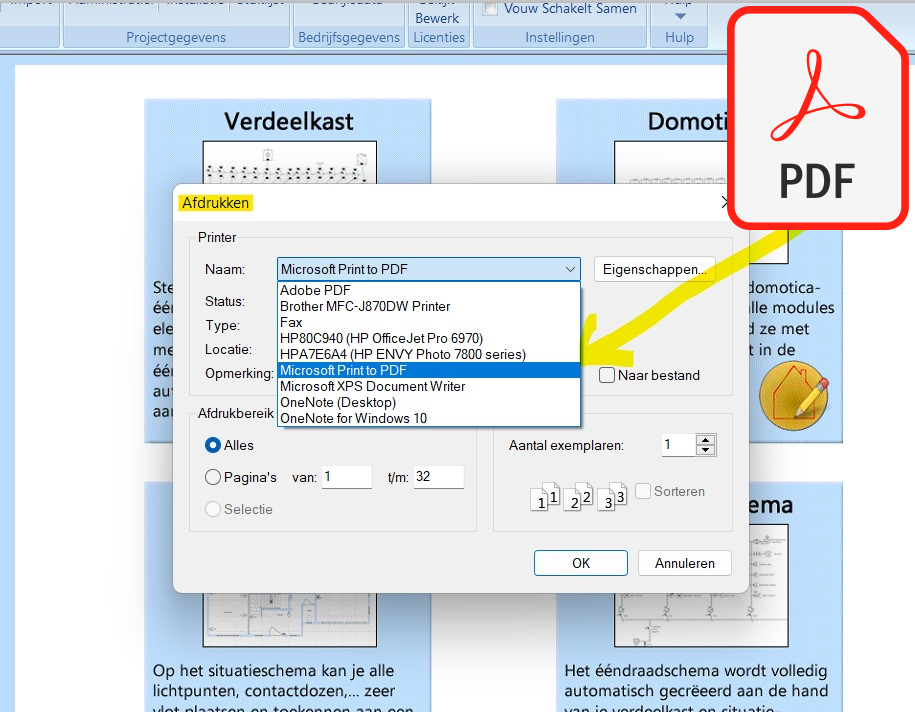
It is possible to convert the formatted schemas into pdf format. To do this, simply select the "Microsoft Print to PDF" printer. By printing to PDF, a PDF document is created at a location of your choice.
Yes, you can always reopen and edit projects, regardless of when you purchased the license. So, if you created a project with a license that expired on 12/05/2022 and you bought a new license on 23/10/2022, you can open and modify that project without any problems.
Yes, when developing a new version, we ensure that it is "backwards compatible", i.e. projects created with an older version can always be opened with a newer version.
NOTE: the opposite is not true. Projects created with a newer version are not always openable with an older version.
It is recommended to regularly back up your projects and also to save this backup file on an external storage device (NAS, USB stick, Cloud, ...) so that you do not lose your backup files in the event of a hard drive crash. In the administrative section of your project ("Administrative" button in the menu bar of the Home tab) you can check the option "On Close, Create a Backup in Folder:" which will create a backup file (projectname.tar.gz) for the active project in the chosen location each time you close a project or when you close Schematicals. This way, you always have a backup of the latest version in the chosen location. If you also want to make a manual backup, you can do this via the "Export" function under the Home tab. To do this, close the project you want to back up and then click the "Export" button. You can then choose a location where you want to save the backup file.
When you want to use Schematicals on a new computer, you need to distinguish between transferring your license key and transferring your projects.
Transferring license keys:
See below under "Can I use Schematicals with one license on multiple computers and how do I do this?"
Transferring projects and settings:
To transfer a project to another computer, create a backup of the project using the "Export" function ("Export" button in the menu bar of the Home tab). You can then "import" the created backup file (projectname.tar.gz) into Schematicals on your other computer.
Settings (company information, logos, signatures, favorites, etc.) up to and including version 1.031 must be recreated on the new computer.
However, from version 1.032 onwards, it will be possible to create a backup file of all projects and settings simultaneously. This backup file can then be fully imported into Schematicals on the new computer.
Yes, you can use Schematicals on multiple computers with an active license key, but never simultaneously. The license key you received with your order can only be used once and is encrypted with data from your computer during installation.
To use the license key on another computer, you need to transfer or "migrate" the license key to another computer from Schematicals on the computer with the active license key. You can do this by clicking the "View Edit" button under the "Licenses" section in the menu bar of the Home tab. A new window will then open showing your active license. Select the license you want to migrate and click the "Migrate" button. You can then enter an email address where you want to receive a new license key.
The license key you received can then be used to activate the professional license on another (or on the same) computer.

We often see one-line diagrams where the push buttons or switches that operate a teleruptor or contactor (or another module with a separate control circuit) are connected directly by a line to the teleruptor or contactor to which the switched consumer (e.g. a lamp or socket) is connected. This suggests that the push buttons are always connected to the same circuit or circuit breaker as the switched consumer. So in that case, the control circuit is always connected to the same circuit as the current or power circuit. However, this is not necessarily the case and often the diagrams are not completely electrically correct.
In Schematicals, for components with a separate control circuit, a separation is automatically made between the control circuit (with the push buttons or switches) and the current or power circuit (with the switched consumer such as a lamp).
When installing a teleruptor in the fuse box, for example, you can connect it (just like with circuit breakers and residual current circuit breakers) to an automatic switch. This connection is the CONTROL CIRCUIT. It is this connection that will subsequently be switched by the push button(s). This circuit is therefore not automatically the same as the circuit of the consumer that will later be switched by this impulse switch.
Once the teleruptor has been placed and connected in the fuse box, this teleruptor can be used, for example, to switch a lighting circuit (both via the attributes of the teleruptor in the fuse box and via the attributes of the lighting circuit on the situation diagram). The lighting circuit that is switched therefore determines the current or power circuit and does not necessarily have to be the same as the control circuit.
In the attributes of the push button on the situation diagram, you then indicate that it switches the teleruptor and not directly the lighting point!
On the single-line diagram, a distinction will therefore be made between the control circuit and the power circuit (even if they are connected to the same automatic switch).
No, you do not necessarily have to create a separate fuse box in Schematicals for every physically separate fuse box in your project. However, there are some differences in the schematics depending on whether you create a separate fuse box in Schematicals or not.
Differences:
- For eacht seperate fuse box in Schematicals, the automatic alphabetical (or numerical) naming of the circuits starts again from A (or 1). Since version 1.029, you can manually adjust the automatically assigned name. When placing all circuit breakers in 1 fuse box, the automatic naming continues.
- For each separate fusebox in Schematicals, a new page is started with the one-line diagrams, making it easy to leave the relevant diagrams with the physical fuse boxes. When all circuit breakers are placed in 1 fuse box in Schematicals, a new page is not started for each physically separate distribution box.
No, the intention is to start a new project for each individual circuit breaker box (with a unique EAN number). These installations will also be subject to separate inspections.
However, if the individual projects are very similar, you can always start a new project, after creating the first project, as a copy of the first one. This way, you don't have to redesign the entire project and can quickly complete additional projects with any minor adjustments.
To power or transform a consumer unit such as a light fixture, socket, or appliance, you must add a "Transfo" via the consumer's attributes ("Via Transfo/Power Supply" field). The "Supplemental Power Supply" that you can install in the fuse box cannot be used for this purpose.
The Supplemental Power Supply in the fuse box can only serve as a power supply for a home automation or domotics bus, as a power supply for 12V or 24V pushbuttons, or as a standalone power supply on the single-wire diagram.